Best Way to Compress PDF Without Losing Quality
Best Way to Compress PDF Without Losing Quality: The Ultimate Guide
We have all encountered this frustrating scenario: you attempt to email a comprehensive business report, upload a portfolio to a job portal, or submit a university assignment online, only to be blocked by a glaring red error message: "File exceeds maximum size limit." Your immediate reaction is to shrink the file. However, standard compression often results in disastrous consequences—blurry images, illegible text, and a highly unprofessional presentation. Finding the best way to compress PDF without losing quality is a critical skill for maintaining professional standards while meeting strict digital file size requirements.
In this detailed guide, we will examine why PDFs become bloated, the difference between destructive and smart compression, and how you can reduce your file sizes instantly without exposing your documents to public cloud servers.
Why Do PDF Files Get So Big?
Before you compress a file, it helps to understand why it is massive in the first place:
1. High-Resolution Embedded Images
If you drop a 12-megapixel photograph from your smartphone into a Word document and save it as a PDF, the PDF embeds that entire massive image file. The document looks the same on screen, but it carries immense invisible digital weight.
2. Embedded Fonts and Metadata
Every time you use a unique font, the PDF embedding process attaches that font file to the document so it renders correctly on other computers. Furthermore, editing software often leaves behind "invisible" metadata—edit histories, original cropped image data, and XML tags—that bloat the file unnecessarily.
"Destructive" vs. "Smart" Compression
Traditional compression tools simply downgrade the resolution of everything indiscriminately. They take your crisp 300 DPI charts and crush them into muddy 72 DPI blobs. This is destructive compression.
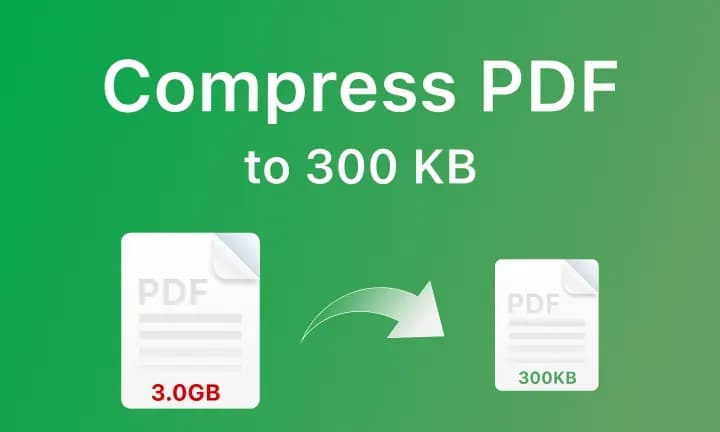
Smart PDF compression, conversely, is intelligent. It selectively removes the invisible metadata, strips out invalid bookmarks, and optimizes the underlying file structure. When dealing with images, it applies selective downsizing only where the human eye cannot detect the difference. The goal is to compress PDF without losing quality visible to the naked eye. This ensures your documents remain razor-sharp for reading on screens and printing, even after shrinking by 60% or more.
The Privacy Danger of Online Compressors
If you search for the best way to compress PDF without losing quality online, you will find hundreds of free cloud tools. But remember what usually makes up these bloated files: high-resolution scans of signed contracts, dense financial reports, or detailed medical records.
To use a free cloud compressor, you must transmit this heavy, confidential data across the internet to a third-party server. Once uploaded, you have zero control over how that file is processed, stored, or utilized. For professionals handling proprietary data, this is an unacceptable privacy violation.
The NoMoreUploads Solution: Local Compression
Using WebAssembly (WASM), NoMoreUploads has engineered a compression engine that runs entirely within your web browser. When you drop a massive 100MB PDF into our tool, it doesn't upload. It is loaded into your computer's local memory.
Your own CPU analyzes the file structure and applies the smart compression algorithms. The compressed, optimized file is generated and saved directly to your hard drive without ever traversing the public internet. This guarantees 100% data privacy and lightning-fast processing speeds.
Step-by-Step: How to Compress PDFs Locally
Optimizing your documents is fast and secure. Here is the workflow:
- Open the Compressor: Navigate to the Compress PDF tool on the NoMoreUploads website.
- Load Your Heavy File: Drag your document into the browser. Notice the instantaneous load time, bypassing slow internet upload speeds.
- Choose Your Compression Level:
- Recommended (Balanced): Offers the optimal tradeoff between significant file size reduction and retaining pristine image quality.
- Extreme Compression: Maximizes size reduction. Ideal for text-heavy drafts meant for internal review where perfect image clarity isn't required.
- Low Compression: Keeps quality nearly identical to the original, perfect for final print proofs that just need a slight trim in size.
- Process and Compare: Click "Compress." The WASM engine will rewrite the file structure. You will be shown the "Before" and "After" sizes.
- Download: Save your newly optimized, highly portable PDF locally.
Conclusion
You no longer have to choose between a manageable file size and a professional, crisp document. By utilizing intelligent, local-first tools, you have found the best way to compress PDF without losing quality while simultaneously guaranteeing the absolute privacy of your sensitive data.
Stop fighting with email attachment limits and stop trusting random cloud servers with your data. Try the NoMoreUploads secure PDF Compressor today and shrink your files with confidence.