How to Remove Pages From a PDF Online
How to Remove Pages From a PDF Online: Curate Your Documents Securely
A common scenario plays out in offices every day: you finally receive the master copy of a massive 100-page report. However, pages 42 through 45 contain highly confidential internal costing margins, and page 99 is just a blank scanning error. You need to forward this document to an external vendor immediately, but sending it "as is" is impossible. You need a fast, precise way to curate the document. This is why knowing how to remove pages from a PDF online is a fundamental digital skill.
In this comprehensive guide, we will discuss why removing specific pages is critical for professional communication, the severe privacy risks associated with traditional online editors, and how to use a local-first web tool to visually delete pages instantly without compromising confidentiality.
Why You Frequently Need to Delete PDF Pages
The PDF format is designed to be immutable, which makes editing it difficult by design. However, the necessity to prune documents arises frequently:
1. Enforcing Confidentiality
The most crucial reason to remove pages is to redact sensitive information. A master contract might contain an appendix with financial projections intended only for the executive team. Before passing that contract down the chain or out of the company, that specific appendix must be cleanly and permanently removed from the file structure.
2. Eliminating Scanning Errors
When executing bulk scans of physical documents, feeding errors are inevitable. Scanners often pull through two sheets at once, resulting in blank pages scattered throughout the digital file. Sending a report peppered with blank pages looks sloppy and disrupts the reader's flow. Learning how to remove pages from a PDF online allows you to clean up these scanning artifacts effortlessly.
3. Reducing File Size and Clutter
Why email a 50MB, 200-page operational manual to a new hire when they only need the 10-page section on "Logging In"? Removing the irrelevant 190 pages not only drastically reduces the file size (making it easily emailable) but also respects the recipient's time by providing only the necessary information.
The Immense Risk of Cloud Deletion Tools
A quick Google search for how to remove pages from a PDF online will yield dozens of results. However, we must analyze the security model of these free tools. To delete page 42 (the confidential costing margins), you must first upload the entire 100-page document to the tool's public server.
Think about the paradox: you are trying to remove a page to protect confidential information, but to do so, you are uploading that exact confidential information to a third-party server you do not control. This is a massive data leak risk and a violation of almost all corporate compliance standards. You cannot trust that the server will delete your uploaded master file immediately or securely.
The Secure Alternative: Local-First Deletion
NoMoreUploads provides the only logical solution to this security paradox. By leveraging advanced WebAssembly (WASM), our PDF tool extracts the complex editing engine from the cloud and runs it locally inside your web browser.
When you need to remove pages, you drag the document into our interface. It does not upload anywhere. The file is read by your local computer's memory. When you delete a page, your own processor alters the file structure. The final document is saved without the data ever crossing an external internet connection. It is the only way to curate confidential documents online safely.
Step-by-Step: How to Remove Pages From a PDF Online Securely
Pruning a document is a highly visual, instantaneous process. Follow these steps:
- Access the Tool: Open the "Delete PDF Pages" utility on the NoMoreUploads website.
- Load the Master Document: Drag and drop your target PDF onto the screen. It loads instantly because it bypasses the internet entirely.
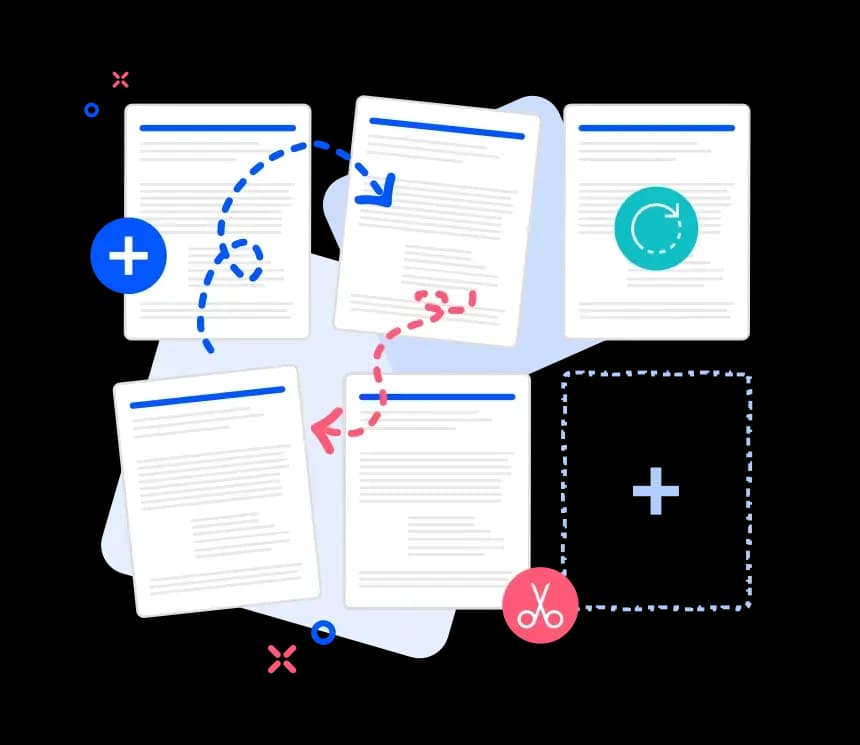
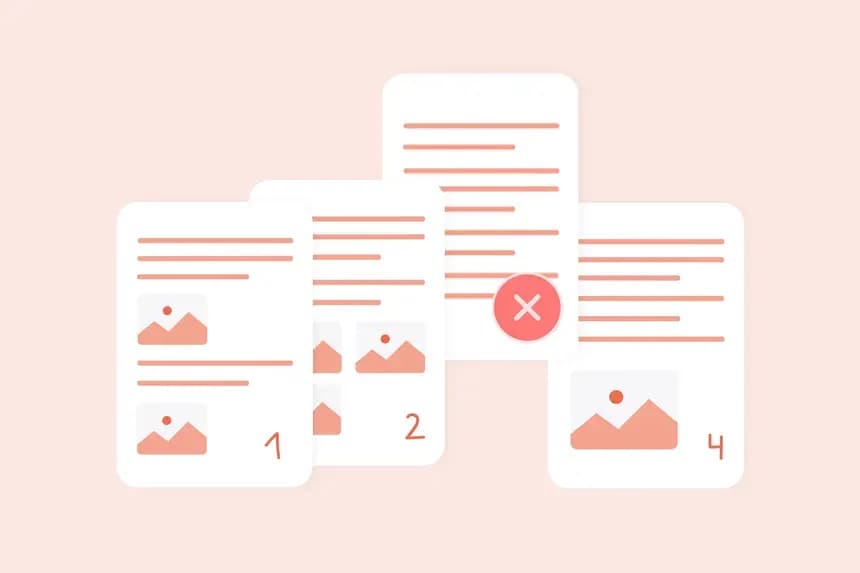
- Identify the Unwanted Pages: The interface displays every page of your document as a visual thumbnail grid. You can clearly read the headers and identify which pages are blank or confidential.
- Click to Delete: Hover your mouse cursor over an offending page. A prominent "Trash" or "X" icon will appear. Click it. The page thumbnail will vanish from the grid, confirming its removal.
- Generate the Clean File: Once you have pruned all necessary pages, click the "Save" or "Apply" button. The local engine will instantly compile a brand new PDF without the deleted pages, saving it securely to your local hard drive.
Conclusion
A polished, curated document demonstrates professionalism. Sending irrelevant blank sheets or accidental confidential data does the exact opposite. By understanding how to remove pages from a PDF online using a visual, local-first tool, you can sculpt your documents into perfect, concise presentations in mere seconds.
Protect your confidential data by never uploading it. Use the secure, instantaneous NoMoreUploads tools to edit your documents seamlessly from any browser.