The Best Offline-Equivalent PDF Tools for Chromebooks
You purchased a Chromebook specifically for its incredible speed, low cost, and sheer simplicity. Because ChromeOS relies almost entirely on cloud-based Google applications, handling lightweight tasks like sending emails and typing documents is a brilliant experience.
However, your frictionless workflow violently crashes the exact second you need to perform heavy structural file manipulation. When someone emails you a massive 50MB PDF that needs to be compressed, redacted, or split, the limitations of your Chromebook become terrifyingly obvious.
You cannot simply install Adobe Acrobat natively. You are forced to rely on questionable web converters or sketchy browser extensions. In this guide, you will learn why traditional Chromebook extensions are dangerous, how cloud utilities fail under pressure, and how to access the best offline-equivalent PDF tools for Chromebooks without paying a single dollar.
The Severe Danger of PDF Browser Extensions
Because Chromebooks cannot run traditional Windows or Mac software, users instinctively flood the Chrome Web Store looking for solutions. They download "Free PDF Editor" extensions and grant them total access to their browser data.
This is arguably the most dangerous cybersecurity mistake a Chromebook user can make. When you grant a third-party extension permission to "read and change all your data on the websites you visit," you are essentially handing over the keys to your entire digital life.
Many of these free extensions are aggressively monetized by secretly scraping your browsing history or injecting hidden affiliate advertising codes into your web pages. Worse yet, some have been caught actively logging keystrokes or transmitting uploaded document text to foreign servers. You absolutely must stop relying on unverified Chrome extensions to manipulate your sensitive files.
Why Cloud Converters Are Unacceptable
If extensions are dangerous, traditional web converters are even worse. If a client sends you a massive legal discovery packet or a heavy financial ledger while you are on a weak coffee shop Wi-Fi connection, attempting to upload that file to a remote cloud server is agonizing.
Beyond the incredibly slow upload speeds, you are creating a massive data breach vulnerability. You are transmitting unencrypted corporate data across a public network to a totally unknown third-party server farm.
If you are handling medical records, client social security numbers, or internal architectural layouts, using a generic cloud converter completely violates standard corporate IT compliance policies. Your Chromebook was meant to be secure; uploading your files to the cloud shatters that security.
The Power of Local WebAssembly on ChromeOS
The ultimate solution for Chromebook users completely sidesteps both dangerous extensions and slow cloud servers. The answer lies in leveraging the raw hardware power inside your specific machine using the modern web.
At NoMoreUploads, our platform was intentionally designed to be the absolute perfect companion for ChromeOS. By utilizing advanced WebAssembly (WASM) architecture, we bring true desktop-class local processing power directly to your Chromebook's native web browser.
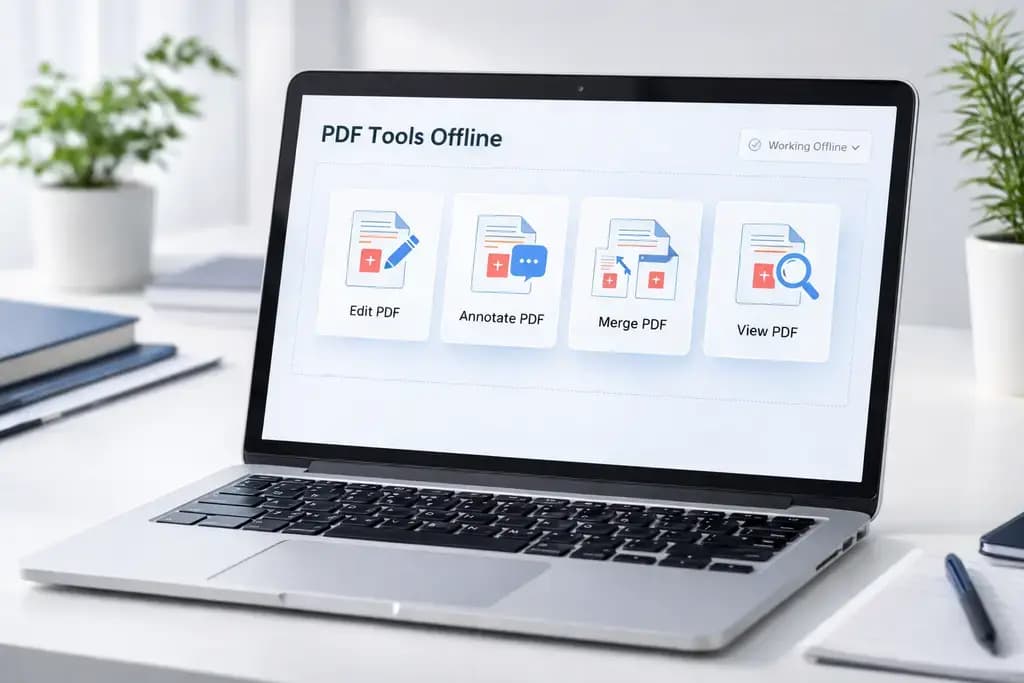
When you navigate to our Compress PDF or Redact PDF tools, we temporarily download our highly complex application processing engine directly into your Chromebook's isolated local memory. You get the incredible power of a native desktop application without installing any permanent software or downloading any extensions.
3 Steps to Manipulate Documents Locally
Supercharging your Chromebook's capabilities takes merely seconds:
- Open our secure web platform directly in your Chromebook's native Google Chrome browser.
- Drag and drop your massive, heavy PDF file into the browser window. Because the tool operates exactly like a strict offline application, there is absolutely zero network upload.
- Your Chromebook's local CPU handles all the complex mathematical compression, redaction, or splitting. Click to instantly save the optimized file back to your local Google Drive.
By eliminating the cloud transfer completely, you bypass artificial file size limits, prevent third-party AI data scraping, and retain 100% uncompromising control over your digital private assets.
Frequently Asked Questions
Can I edit a PDF offline chromebook natively? ChromeOS has very limited built-in capabilities, mainly restricted to viewing and adding basic text annotations. For heavy manipulation like deep compression, explicit redaction, or structural conversion, you must leverage localized WebAssembly browser tools.
Why shouldn't I use a Chrome Web Store PDF extension? Many extensions are poorly regulated and pose severe privacy threats. They frequently demand wide-reaching permissions that allow them to track your internet behavior, inject advertisements, or scrape your private documents.
Does local browser processing work on cheap Chromebooks? Yes. Even entry-level Chromebooks possess more than enough CPU power to execute deep mathematical file processing locally via WASM. You will achieve drastically faster results locally than waiting for a massive file to transfer to a cloud server over a slow network.
Are my files uploaded if I use NoMoreUploads on a Chromebook? Absolutely not. You are utilizing a true zero-upload architecture. Our engine is downloaded to your Chromebook's RAM, ensuring your files are manipulated entirely locally. It perfectly mirrors an offline software experience within your browser.
Elevate Your Chromebook Experience Now
Stop struggling with the functional limitations of ChromeOS and stop exposing your private data to unverified extensions. Instantly upgrade your machine to enterprise-class performance. Compress, split, and completely secure your workflow locally using our suite of 100% free PDF tools today.