How to Password Protect PDF Bank Statement for Email
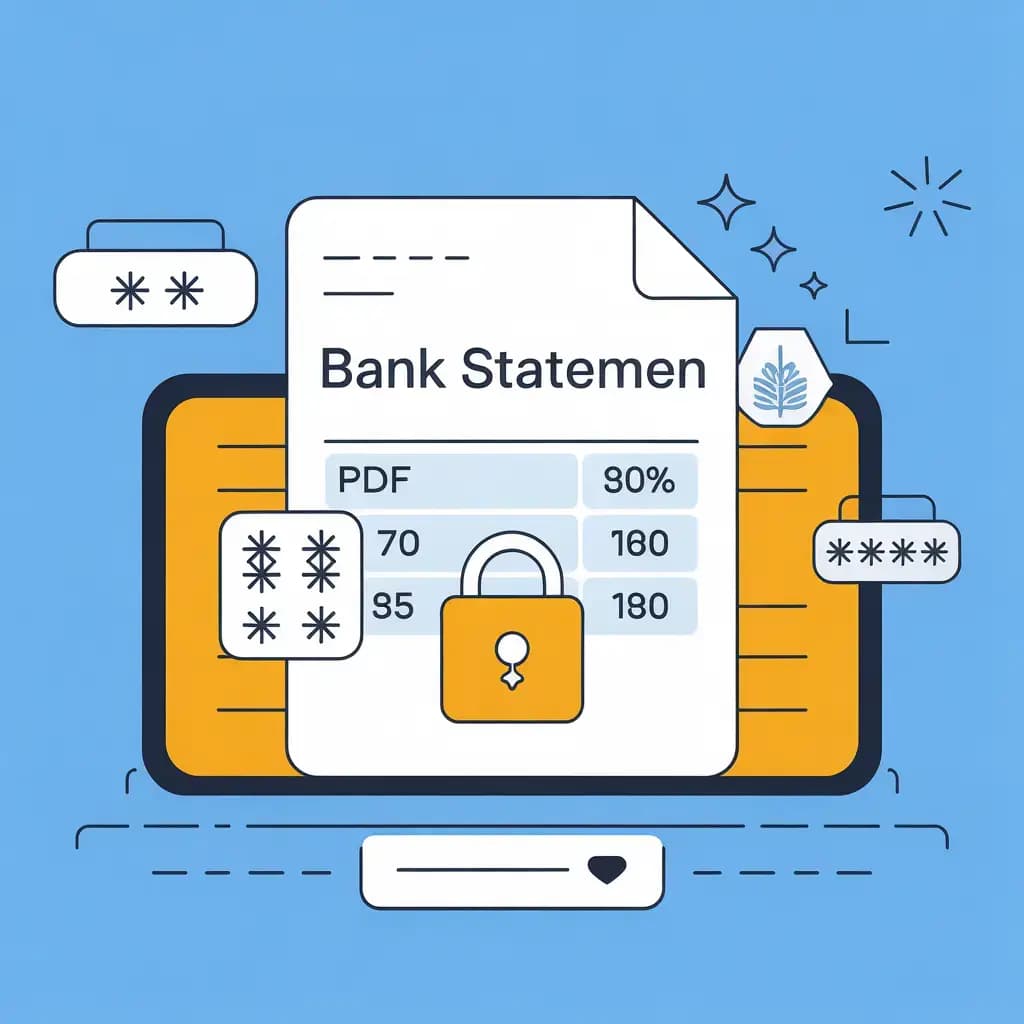
You just finished consolidating your taxes and need to email a highly sensitive PDF bank statement to your new accountant. You drop the file into your Gmail draft and hit send, assuming your email provider's encryption is secure enough.
You just made a major behavioral security error. Standard email is notoriously vulnerable to interception, phishing attacks, and basic human error. If you accidentally misspell your accountant's email address by a single letter, you have just blindly handed your entire financial history to a total stranger.
Sending unencrypted financial documents across the open internet is borderline negligent. In this security guide, you will learn exactly how to password protect a PDF bank statement for email, why default encryptions fail, and the critical sanitization step you must take before you lock the file.
Why Standard Email is Not Secure
Most professionals falsely believe that because Gmail or Outlook use HTTPS connections, the attachments inside their emails are inherently bulletproof. While the transit tunnel itself is encrypted, the email structure is fundamentally flawed.
Emails bounce across multiple intermediary servers before reaching their final destination. If any server along that relay chain is compromised, external actors can easily scrape unencrypted attachments.
Furthermore, if your accountant's email account gets hacked six months from now, the hacker gains total access to their entire historical inbox. Because your bank statement was never individually encrypted, your financial data is immediately exposed in their historical data breach.
The Absolute Necessity of File-Level Encryption
To guarantee your financial safety, you must shift your mindset away from network encryption toward strict file-level encryption. The document itself must be completely impenetrable, mathematically scrambled into a randomized hash.
When you properly encrypt a PDF, the structural code is violently scrambled using advanced cryptographic algorithms, such as 256-bit AES encryption. To unscramble the internal matrix and render the text readable, the recipient must provide the exact alphanumeric decryption key.
If you lock the file and immediately text the secure password to your accountant via an encrypted messaging app (like Signal), you create a perfectly secure two-channel authentication system. Even if your email is intercepted, the bank statement remains completely useless to the hacker.
Step 1: Sanitize the Metadata Before Locking
Before you encrypt the file, there is a massive hidden vulnerability you must neutralize. Standard bank statements and tax exports are absolutely packed with invisible metadata tracing tags.
These hidden XML headers frequently contain your exact creation timestamps, the proprietary software you used to generate the report, and deeply embedded tracking anchors. If you encrypt a file containing metadata, that data is permanently locked inside the document architecture.
You must strip this tracing data completely offline before applying a password lock. You can achieve this instantly by dragging your bank statement into our 100% local, browser-based Sanitize PDF tool. Because we utilize client-side WebAssembly, your financial spreadsheet never leaves your computer, ensuring absolute privacy while mathematically destroying the structural metadata.
Step 2: Applying the Digital Padlock
Once your pristine, metadata-free document is ready, locking it is incredibly straightforward using native operating system tools. You do not need to upload your sensitive financial spreadsheets to unverified, dangerous cloud converter websites.
If you are on a Mac: 1. Open your sanitized bank statement using the default Preview application. 2. Click "File" on the top menubar and select "Export." 3. Click the "Permissions" button at the bottom of the export window. 4. Check "Require Password To Open Document," type a secure alphanumeric phrase, and save the file to your desktop.
If you are on Windows: 1. Open the file in Microsoft Word (which automatically converts the PDF). 2. Click "File," navigate to "Info," and click "Protect Document." 3. Select "Encrypt with Password," enter your secure key, and save the file back out directly as a PDF.
Frequently Asked Questions
Is it safe to password protect a pdf using a free website? Absolutely not. You are actively trying to protect highly sensitive financial data. Uploading that exact bank statement to a random third-party cloud server to encrypt it defeats the entire purpose and creates a massive compliance vulnerability.
Will a password protect the document from being printed? Yes, most encryption software allows you to set specific granular permissions. You can issue a master password to view the document, while simultaneously disabling printing, copying, and structural editing capabilities.
How strong should the document password be? Avoid using personal names, birthdays, or easily guessable corporate phases. We highly recommend generating a minimum 16-character alphanumeric code using a dedicated password manager to guarantee protection against aggressive brute-force software.
How do I safely share the password with my accountant? Never establish the password in the exact same email thread containing the document. Send the locked file via email, and securely text or physically call the recipient to verbally share the decryption key.
Secure Your Financial Assets Today
Do not casually attach your proprietary accounting data to an unprotected email thread. Ensure your absolute privacy by establishing strict file-level encryption. But before you lock those files down, guarantee every shred of tracking data is permanently erased locally using our free, zero-upload PDF Sanitizer utility right now.