How to Convert Excel to PDF Online
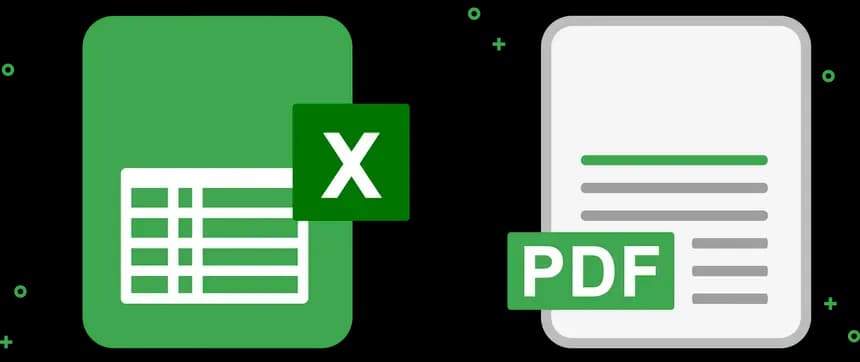
How to Convert Excel to PDF Online: Preserve Your Spreadsheets Perfect Layout
Microsoft Excel is arguably the most powerful data management tool in the business world. From complex financial projection models to simple employee shift schedules, spreadsheets run the modern office. However, Excel has a fatal flaw when it comes to communication: instability. If you email an .xlsx file to a client, there is no guarantee it will look exactly the way you designed it. Different versions of Excel, missing fonts, or viewing it on a mobile device can destroy your carefully crafted formatting. The only way to guarantee visual fidelity is to learn how to convert Excel to PDF online before you hit send.
In this in-depth guide, we will explore why shipping raw spreadsheets is a bad idea, cases where PDF locked-layouts are required, and how to use privacy-first tools to perform the conversion securely.
Why You Should Never Email an Unlocked Spreadsheet
Unless you are explicitly collaborating on data entry with a colleague, sending a raw spreadsheet file poses several professional and operational risks:
1. "What You See Is NOT What They Get"
Excel formatting is highly dependent on the user's local machine settings. Page margins, default printers, and missing fonts can cause columns to resize automatically. The result? Your beautiful one-page financial summary might print out spanning across four messy pages on your client's desk. When you convert Excel to PDF, you "bake in" the styling. The PDF format acts like digital paper—freezing your rows, columns, charts, and colors exactly as you intended.
2. Accidental (or Intentional) Data Manipulation
If you send an invoice or a finalized quote in Excel format, the recipient can simply click a cell and change a number. Whether accidental (a slip of the keyboard) or malicious, altering finalized financial data causes massive headaches. Converting your sheet to a PDF ensures the document becomes "read-only," safeguarding your original figures.
3. Mobile Accessibility Issues
Have you ever tried to navigate a 50-column spreadsheet on a 6-inch smartphone screen? It is a terrible user experience. PDFs, on the other hand, render smoothly and predictably on iPhones, Androids, and tablets, allowing decision-makers to review your reports effortlessly on the go.
The Privacy Problem with Excel Converters
When searching for how to convert Excel to PDF online, you will find a myriad of free tools. However, virtually all of them require you to upload your file to their cloud servers. Stop and consider what is inside your spreadsheets: quarterly revenue figures, employee salary data, client contact lists, and proprietary formulas.
Uploading this highly classified business data to a free, random online tool is a severe breach of corporate security policies. You are relying entirely on their promise that they won't mine your data and that their servers won't be hacked.
Secure, Local-First Conversion with NoMoreUploads
This is where NoMoreUploads changes the paradigm. We provide the convenience of a browser-based tool without the catastrophic privacy risks of cloud uploads. By utilizing advanced client-side technologies like WebAssembly, our tool processes your data locally.
When you use our platform, your browser actually translates the complicated Excel XML data into a PDF format using your own computer's CPU. The data never travels across the internet. It is the only way to convert Excel to PDF online with 100% guaranteed, mathematically proven privacy.
Step-by-Step: How to Convert Excel to PDF
Locking down your spreadsheet data is fast and simple. Follow these steps:
- Prepare Your Spreadsheet: Before converting, check your "Print Preview" in Excel. Ensure your columns fit on the page (use "Fit to One Page" scaling) and that you don't have massive blank areas selected in your print area.
- Open the Secure Converter: Navigate to the Excel to PDF tool on the NoMoreUploads site.
- Load the File Locally: Drag and drop your .xls or .xlsx file into the browser. Remember, there is no upload taking place, so loading is instantaneous.
- Process the Data: Click the convert button. Our local engine analyzes your tabs, charts, formatting, and formulas, translating the visual output into crisp vector PDF paths.
- Download Your Report: Within seconds, your new, locked PDF is generated directly into your downloads folder, ready to be safely emailed to clients or management.
Conclusion
In business communication, presentation is just as important as the data itself. A broken, messy spreadsheet reflects poorly on your professionalism. By understanding how to convert Excel to PDF online securely, you ensure that your hard work arrives looking exactly as it should, without ever compromising your company's sensitive data privacy.
Stop worrying about formatting conflicts and data leaks. Try our secure, local-first Excel conversion tool today and send your reports with confidence.