How to Convert PowerPoint to PDF
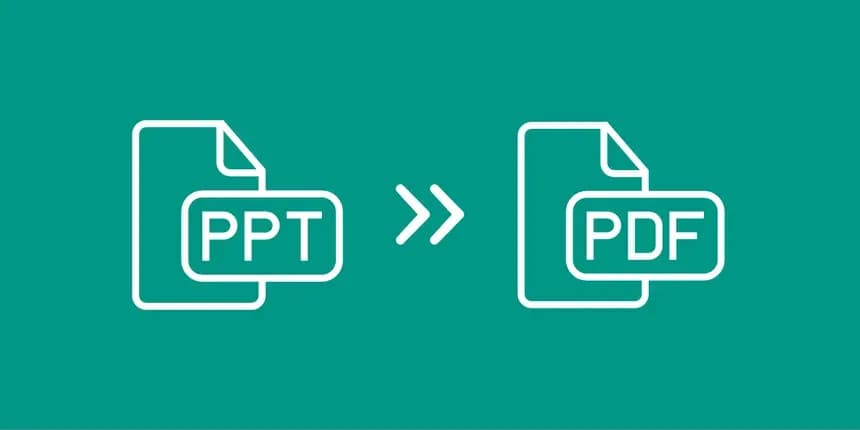
How to Convert PowerPoint to PDF: Ensure Your Slides Perfect Delivery
You have spent days crafting the ultimate presentation. The typography is sharp, the custom graphics are aligned perfectly, and the flow of the pitch is flawless. But when you email the .pptx file to a client, or open it on the conference room computer, disaster strikes. The unique fonts revert to a default Arial, the layout breaks, and your text boxes overlap your images. To guarantee your audience sees exactly what you designed, you must learn how to convert PowerPoint to PDF before you ever hit send.
In this guide, we will explore why shipping raw presentation files is a massive professional risk, the scenarios where locked slides are superior, and why you should only use local-first tools to secure your proprietary pitch decks.
The Risks of Sending Raw PowerPoint Files
Unless you are actively co-authoring a presentation with a colleague on a shared drive, you should never distribute a raw .pptx file. Doing so invites a host of issues:
1. The "Missing Font" Catastrophe
If you use a premium, branded font to make your slides pop, and the recipient's computer doesn't have that exact font installed, PowerPoint will ruthlessly replace it. A beautiful, sleek header suddenly becomes a clunky, oversized mess that pushes your bullet points off the slide entirely. When you learn how to convert PowerPoint to PDF, you permanently embed those custom fonts into the document geometry. The text renders perfectly on any device, anywhere in the world.
2. Avoiding Accidental Alterations
A pitch deck is a finely tuned sales instrument. If you email a raw file, a client might accidentally delete a crucial slide, alter a pricing tier by mistake, or mess up a chart while scrolling. A PDF export serves as a physical "printout" in digital form. It is finalized, read-only, and protects the integrity of your hard work.
3. File Size Issues
PowerPoint files containing high-resolution images, videos, or excessive slide masters can quickly balloon to 50MB or more, guaranteeing they will bounce back from most corporate email servers. Converting your slides locally compresses the visual data efficiently, resulting in a lean, highly emailable document.
The Privacy Blackhole of Cloud Converters
When searching for how to convert PowerPoint to PDF, you will find dozens of free online tools. But consider the typical content of a PowerPoint: unreleased product marketing plans, confidential startup pitch decks containing financial runway data, or internal HR training slides.
Uploading this highly proprietary data to an unknown public cloud server is a massive corporate security breach. Your intellectual property is sitting on a third-party server, entirely out of your control. Even if the website claims to delete files promptly, the data transfer itself exposes your company to interception.
NoMoreUploads: The Local-First Secure Solution
This is the core problem NoMoreUploads solves. We provide the speed and convenience of an online tool without ever compromising your data privacy. By utilizing advanced WebAssembly (WASM), our platform executes the complex conversion engine entirely locally within your web browser.
When you use our tool, your browser translates the individual slides into distinct PDF pages using your own computer's processing power. Your unreleased pitch deck is never uploaded to the internet. We offer the only way to publicly convert PowerPoint to PDF with mathematically proven, 100% data privacy.
Step-by-Step Guide: Locking Down Your Slides
Securing your presentation is incredibly fast. Follow these steps:
- Finalize Your Deck: Ensure all typos are fixed and your slides are in the correct order in PowerPoint or Google Slides. Save the final .pptx file.
- Open the Secure Converter: Navigate to the PowerPoint to PDF tool on the NoMoreUploads website.
- Load the File Locally: Drag your .pptx file into the browser window. Because the conversion is local, there is zero upload delay—even a massive 200-slide deck loads instantly.
- Process the Slides: Click the convert button. Our WASM engine will instantly analyze your layouts, fonts, and graphics, rendering each slide as a pristine, high-resolution PDF page.
- Download and Share: Within seconds, your finalized, locked PDF presentation is available in your downloads folder, ready to be confidently emailed or presented on any device.
Conclusion
Your presentation is your professional voice; do not let incompatible software ruin your message. By understanding how to convert PowerPoint to PDF, you ensure that your design, fonts, and data remain pristine and professional, regardless of the device opening them.
More importantly, by choosing a secure, local-first tool like NoMoreUploads, you guarantee that your proprietary pitch decks and internal strategies remain entirely confidential. Protect your slides and your privacy today by using our free, secure converter.