How to Convert PDF to PowerPoint
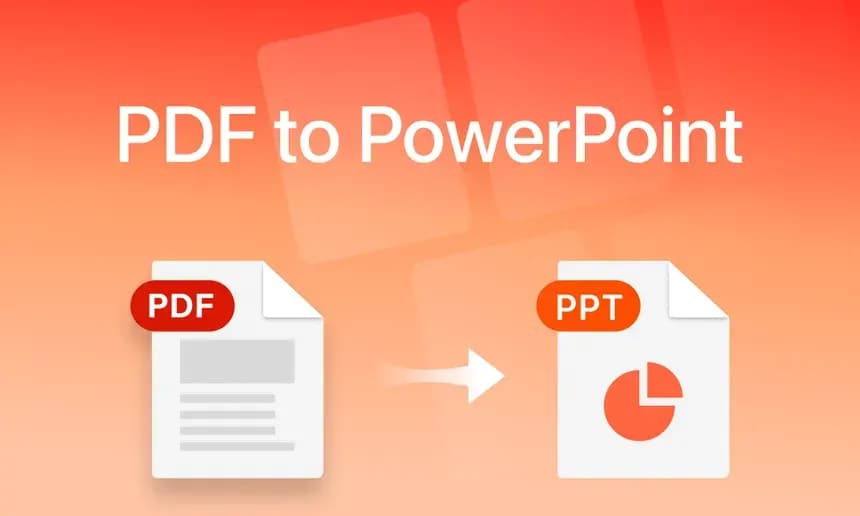
How to Convert PDF to PowerPoint: Revive Your Static Presentations
Imagine this scenario: you are preparing to give a crucial Q3 update to your team. You know the perfect slides were created last year by a former colleague. You search the corporate drive and find the deck, but there is a major problem—they only saved the final PDF handout. The original editable source file is gone. You cannot click on the text to update the dates from 2023 to 2024. Your only option seems to be painstakingly retyping dozens of slides from scratch. Fortunately, there is a better way. By learning how to convert PDF to PowerPoint automatically, you can recover those lost slides and reclaim hours of productivity.
In this comprehensive guide, we will explore how difficult document reconstruction actually is, why copy-and-paste fails, and how you can safely recover your editable slides without exposing proprietary data to public cloud servers.
Why Copy-and-Paste is Not an Option
A PDF is essentially a digital photograph of a piece of paper. It is a flat canvas where text, images, and shapes are painted into specific coordinates. When you attempt to copy text from a PDF presentation and paste it into a blank PowerPoint slide, the formatting is destroyed.
Bullet points lose their indentation, headers merged with body text, and background images must be handled separately using cumbersome screenshot tools. Rebuilding a single complex slide manually can take 15 minutes. This massive bottleneck is exactly why discovering a tool that teaches you how to convert PDF to PowerPoint is an absolute lifesaver. It bridges the gap between static handouts and fluid, editable workspaces.
The Science Connecting PDF to PPTX
Converting a flat PDF document back into a dynamic PowerPoint presentation requires intelligent reconstruction technology. The conversion engine acts like a reverse engineer:
1. Visual Hierarchy Recognition
The engine scans the fixed PDF page and identifies groups of objects. It looks for large, bold text at the top and designates it as the slide "Title." It spots indented text blocks and interprets them as lists.
2. Asset Separation
Instead of taking a single large screenshot, the engine isolates the background graphics, charts, and logos. It extracts these visual elements directly, removing them from the text layer.
3. Rebuilding the Editable Slide
Finally, the tool generates a brand new .pptx file. It places the extracted images back into their relative X and Y coordinates on a blank slide, and overlays fully editable text boxes containing the exact prose from the original PDF layout.
The Critical Privacy Risk of Online Reconstruction
If you search Google for how to convert PDF to PowerPoint, you will find a myriad of free, cloud-based converters. But stop and analyze what you are uploading: an old internal pitch deck, financial projections from a previous quarter, or perhaps proprietary training materials outlining your sales strategy.
Uploading this highly confidential corporate data to an unknown public server is an enormous security risk. Even if the website promises to delete the file, the data is still transmitted across the internet, outside the safety of your corporate firewall. NoMoreUploads solves this flaw by operating entirely locally. Utilizing WebAssembly (WASM), our engine performs the complex slide reconstruction within your browser's local memory. Your 2023 financial deck never leaves your local machine, ensuring absolute compliance and data privacy.
Step-by-Step Guide: Recover Your Editable Slides
Breathing life back into a dead PDF presentation is fast and entirely secure. Follow these steps:
- Open the Secure Converter: Navigate to the PDF to PowerPoint tool on the NoMoreUploads website.
- Load the Locked Handout: Drag and drop your static PDF presentation into the browser. Remember, because there is no upload process, even a 100-page slide deck loads instantly.
- Automate the Reconstruction: Click the convert button. Our local WASM engine will instantly tear down the static layout, intelligently separating the headings, body text, and images.
- Download Your .pptx File: Within moments, a fully editable Microsoft PowerPoint file will be generated in your downloads folder.
- Update and Present: Open the new file in PowerPoint or Google Slides. You can now tweak the dates, update the charts, and refine the bullet points as if you had drafted the original file yourself.
Conclusion
Losing the original source file for a critical presentation shouldn't sentence you to hours of tedious retyping. By mastering how to convert PDF to PowerPoint securely using intelligent local-first tools, you can instantly recover your layouts, text, and graphics.
Stop wasting time rebuilding slides from screenshots, and stop risking your company's proprietary data by uploading it to random cloud servers. Use the NoMoreUploads secure PDF to PowerPoint converter today and regain control over your critical presentations instantly.