How to Convert PDF to Excel (Editable)
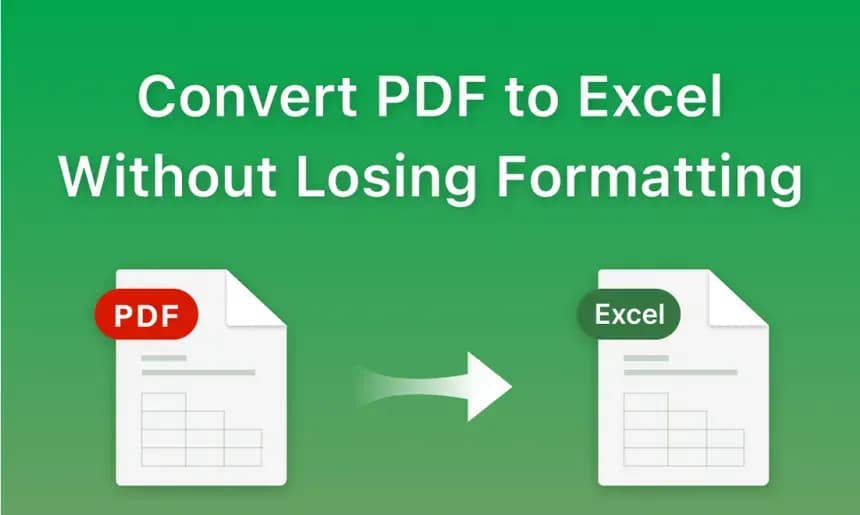
How to Convert PDF to Excel (Editable): Automate Your Data Extraction
Data is the lifeblood of modern business. We run analysis, create projections, and balance accounts. But what happens when that crucial data is trapped inside a static, uneditable document? If a vendor sends you a 30-page invoice, or your bank provides quarterly statements exclusively in PDF format, the prospect of manually retyping thousands of numbers into a spreadsheet can be a nightmare. It is slow, soul-crushing work, and incredibly prone to human error. To reclaim your time and accuracy, you must learn how to convert PDF to Excel automatically.
In this guide, we will explore the technology behind data extraction, the massive productivity gains it offers, and why using secure, local-first tools is critical when parsing financial and sensitive data from your documents.
The Nightmare of Manual Data Entry
PDFs are universally praised because they freeze layouts—they are the digital equivalent of printed paper. However, this strength becomes a massive liability when you actually need to interact with the data shown on that "paper."
When you try to copy and paste a table from a standard PDF into Microsoft Excel, the result is usually chaotic. Data meant for separate columns gets mashed into a single cell, header rows misalign, and numbers suddenly contain weird formatting characters. Reformatting this pasted mess often takes just as long as retyping it from scratch. This bottleneck is why knowing how to convert PDF to Excel using intelligent table-extraction software is considered a superpower for accountants, analysts, and administrators.
How PDF to Excel Extraction Actually Works
When you utilize a dedicated conversion tool, you aren't just copying text; you are employing complex algorithms that structurally analyze the document.
1. Structural Recognition
Our intelligent converter scans the PDF page looking for clear visual cues. It identifies vertical lines as column dividers and horizontal lines as rows. Even if the table lacks visible borders, the localized grouping of numbers and the whitespace between columns can signal to the engine that a table exists.
2. Text Layer Processing
Once the grid is established, the tool extracts the text layer data and maps it to the newly defined X and Y coordinates of the spreadsheet cells. This ensures that the figure for "Q3 Revenue" lands exactly under the correct header, maintaining the integrity of the dataset.
3. The Output
The final step packages this newly structured data into a pristine .xlsx file, ready for you to apply SUM functions, VLOOKUPs, or pivot tables immediately.
Why Local-First Processing is Critical for Financial Data
If you search the web for how to convert PDF to Excel, you will be inundated with free cloud converters. However, think about the data you are converting: bank statements, payroll records, corporate tax returns, and client sales ledgers.
Uploading this highly confidential financial data to an unknown third-party server poses an unacceptable privacy risk. Even encrypted cloud tools represent a "window of vulnerability" where data is processed externally. This is where NoMoreUploads differentiates itself. By utilizing cutting-edge WebAssembly technology, our extraction engine runs entirely locally in your web browser. Your bank statements are parsed by your own computer's CPU; the data is never transmitted over the internet, ensuring 100% regulatory compliance and absolute privacy.
Step-by-Step Guide: Extracting Tables to Excel
Liberating your data from static documents is fast and secure. Here is how to do it:
- Open the Secure Extractor: Navigate to the PDF to Excel tool on the NoMoreUploads platform.
- Load Your PDF: Drag and drop the static report containing the tables into the browser window. The file loads instantly since there is no server upload.
- Automated Processing: Click convert. The local WASM engine will instantly scan the document, mapping the visual structure and text layout into spreadsheet coordinates.
- Download Your .xlsx File: Within moments, a fully editable Excel spreadsheet will be generated on your local hard drive.
- Review and Analyze: Open the new file in Microsoft Excel or Google Sheets. The data will be partitioned cleanly into cells and columns, allowing you to begin your analysis immediately.
Pro Scenarios for PDF to Excel Conversion
- Accounting & Bookkeeping: Instantly convert monthly PDF bank statements into Excel to easily reconcile transactions against your accounting software.
- Logistics & Inventory: Take a static vendor price list or inventory manifest and convert it into a searchable, sortable database.
- Research & Academia: Extract large datasets, census figures, or survey results embedded inside published scientific papers directly into a statistical analysis suite.
Conclusion
Your time is far too valuable to be spent performing manual data entry. By mastering how to convert PDF to Excel using intelligent, structured extraction tools, you can turn hours of tedious typing into a task that takes less than five seconds. Better yet, by demanding local-first processing, you eliminate the severe privacy risks associated with uploading financial documents to the cloud.
Stop typing and start analyzing. Use our secure PDF to Excel converter today and unlock your trapped data.